FAQs

Login Help

In case you forgot the details to login in MMJ account, kindly write us at [email protected] with any of the following information:
  • Email addresses associated with the account
  • Artist Name: Exact Spelling
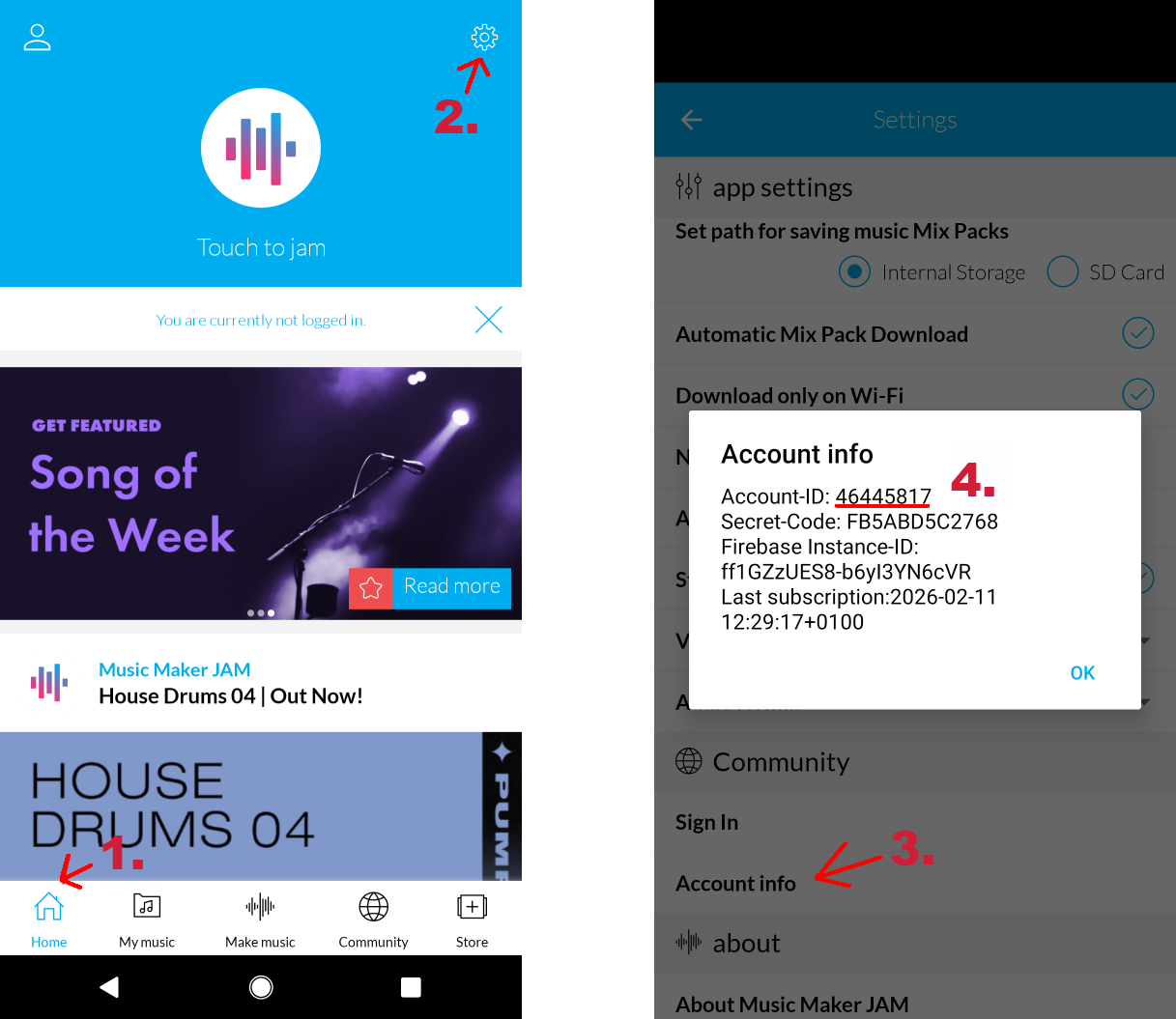
  • Account ID: Go to the Settings page from Home Page of Music Maker JAM and open account details from there.

Music Maker JAM Account ID

Your password can be reset using the link on the login screen of the app. You’ll receive an email from us and just need to follow the prompts. If you don’t receive the email, please check your junk/spam folder.

If you’re still having trouble logging in, terminate the app (by swiping off the list of running apps), reopen the app and try again.
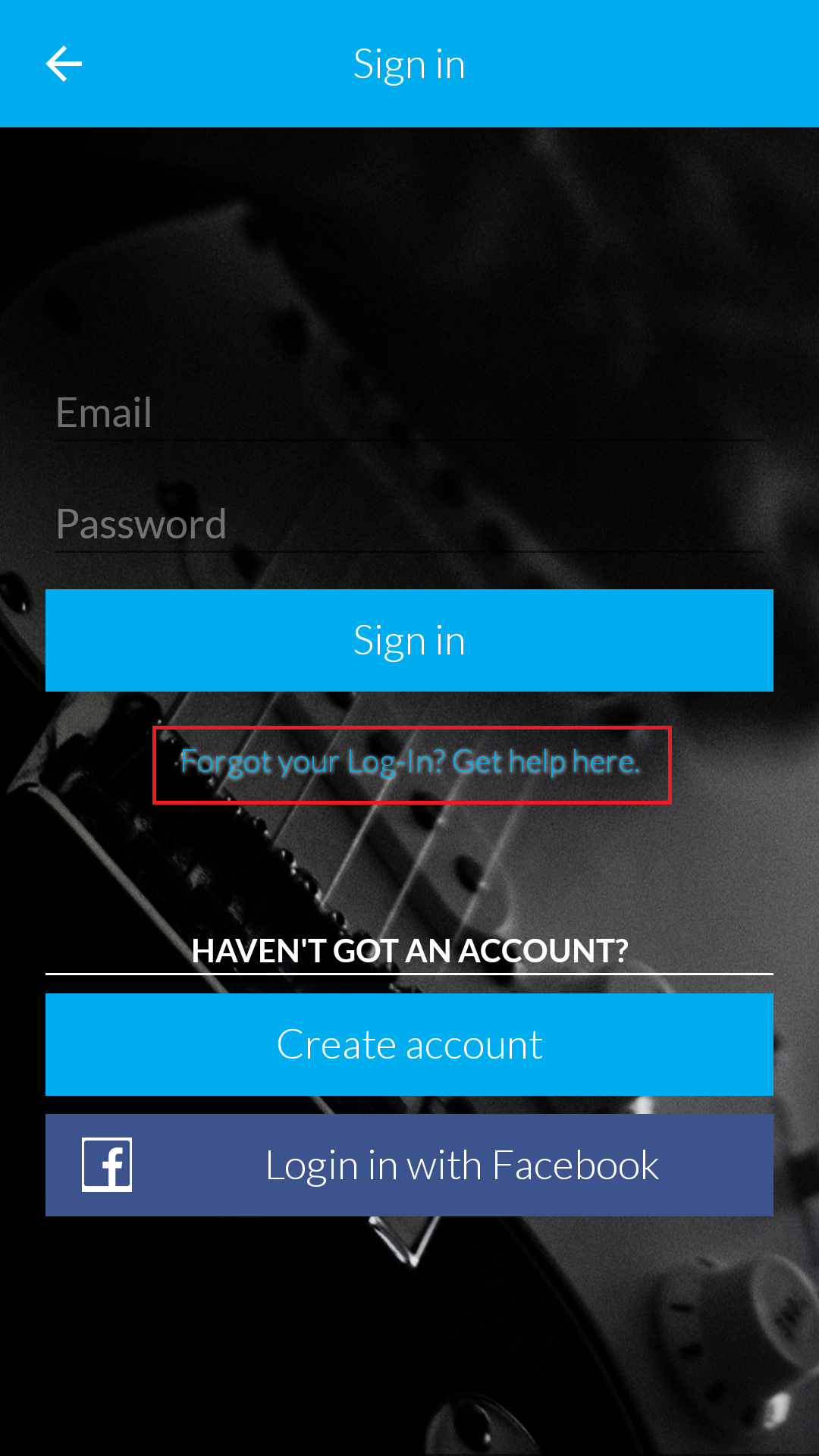
Music Maker JAM Forgotten Password

General

The audio files you have created with Music Maker JAM are stored locally on your device, and therefore may be lost if your device is damaged or lost, if you accidentally delete them, or even if you uninstall the MMJ app.

Music Maker JAM does not create backups of your songs and cannot restore them. You are responsible for this yourself and we recommend that you save a copy of your masterpieces in a safe place.

On Android, the easiest way to do this is to use Google Drive. The following steps show how you can back up an audio file created with Music Maker JAM to Google Drive:

1. Open the “Files” app
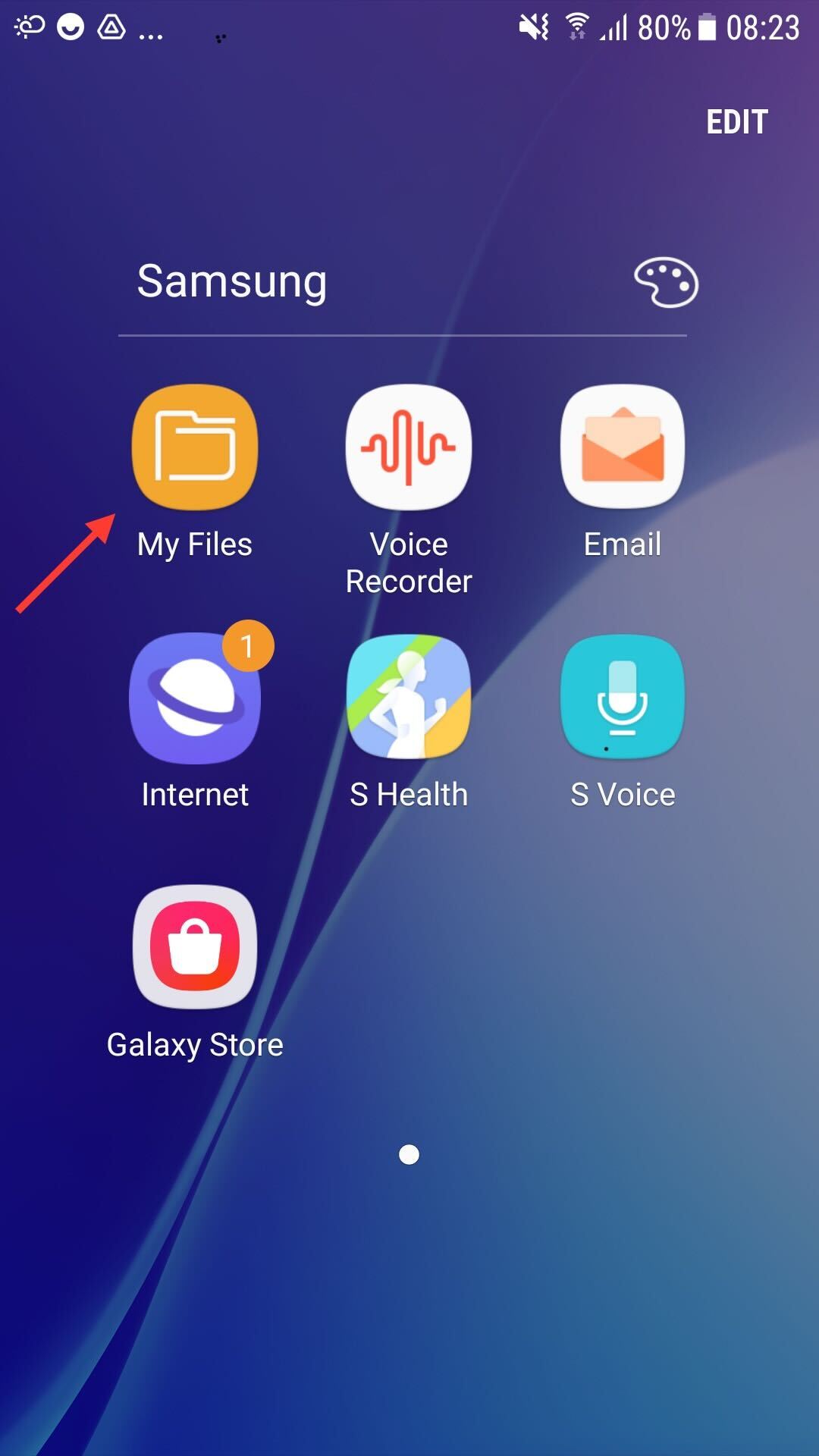

2. Choose “Audio” section
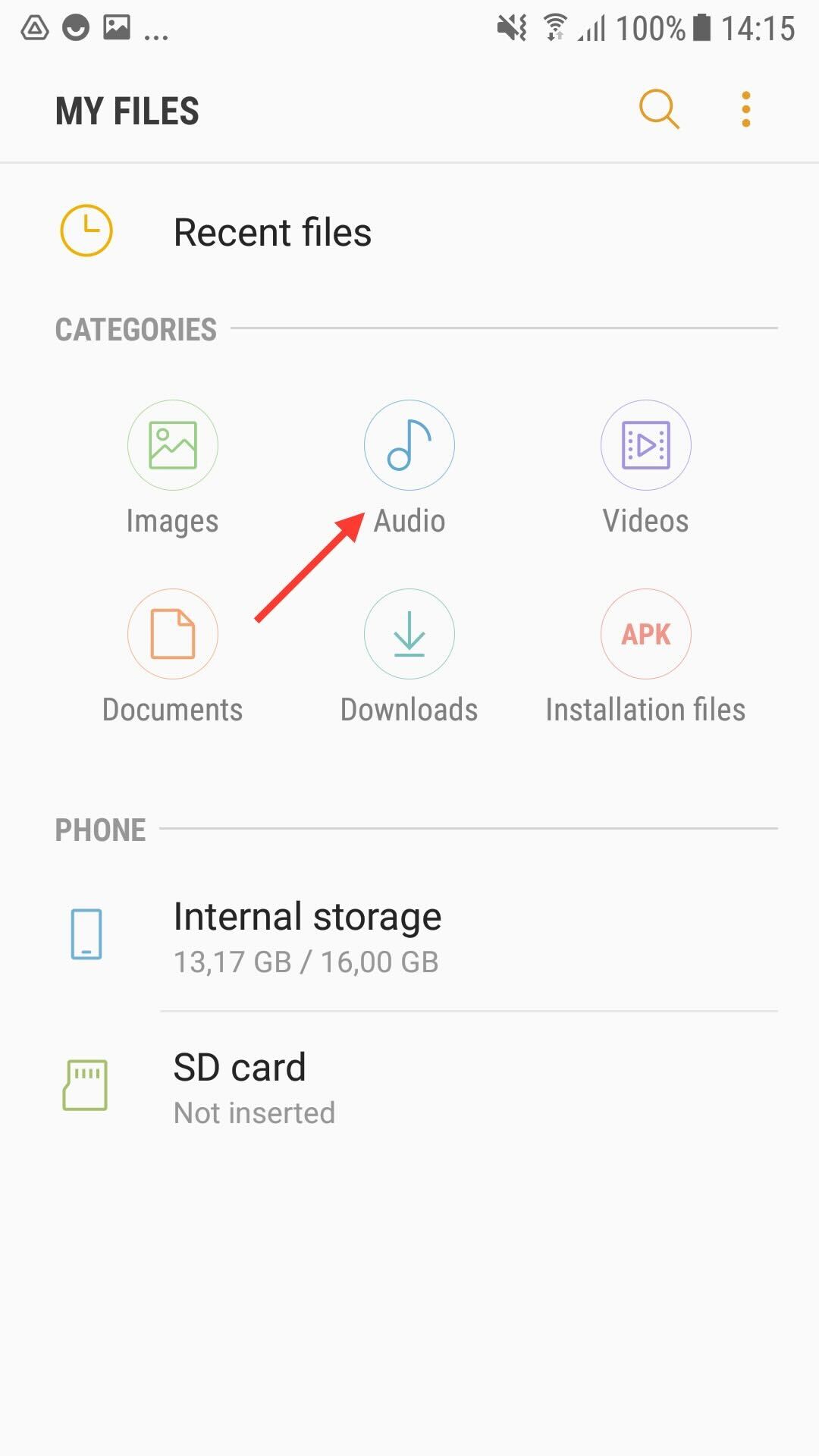

3. Select “Music Maker Jam Records” folder
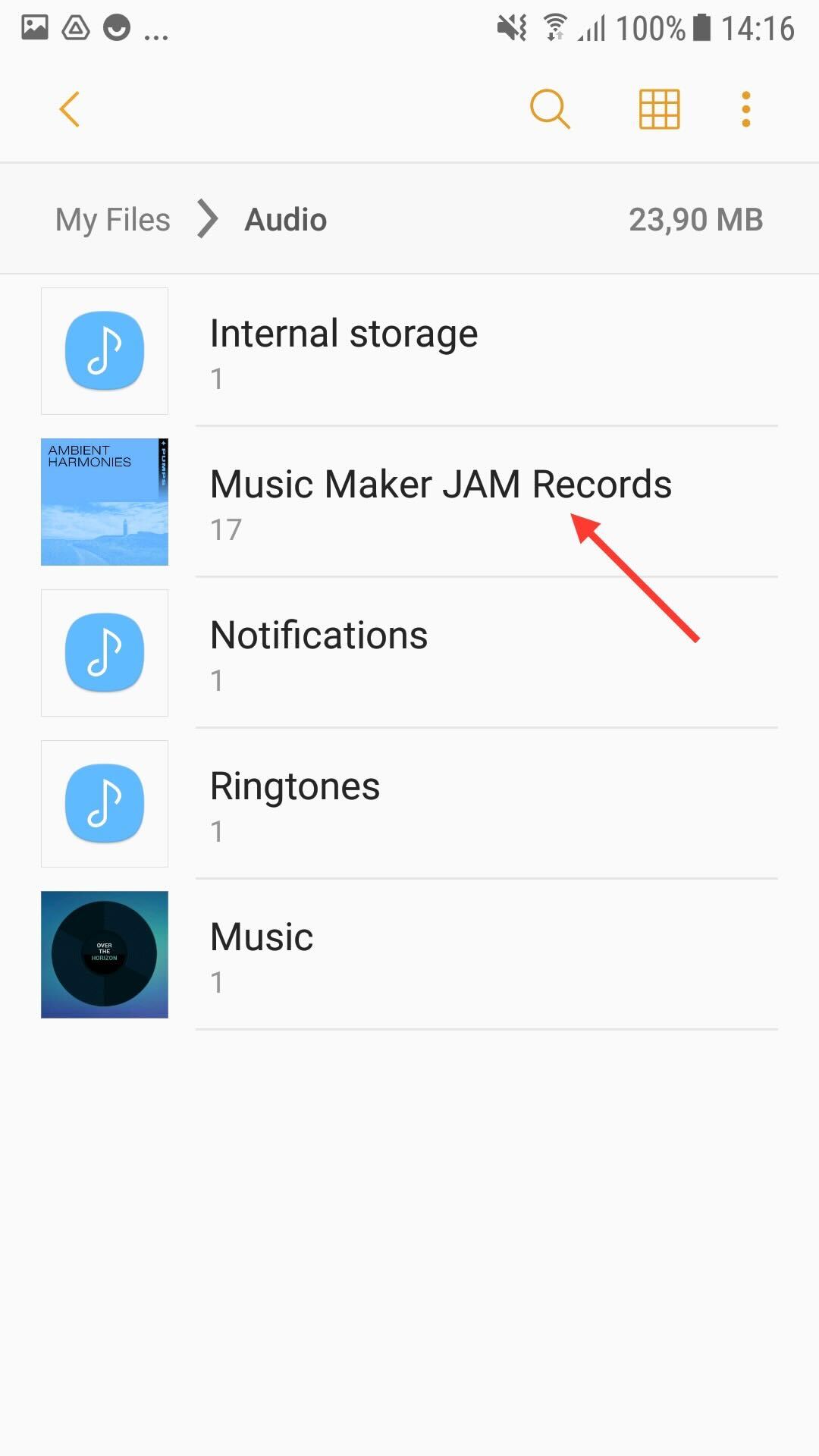

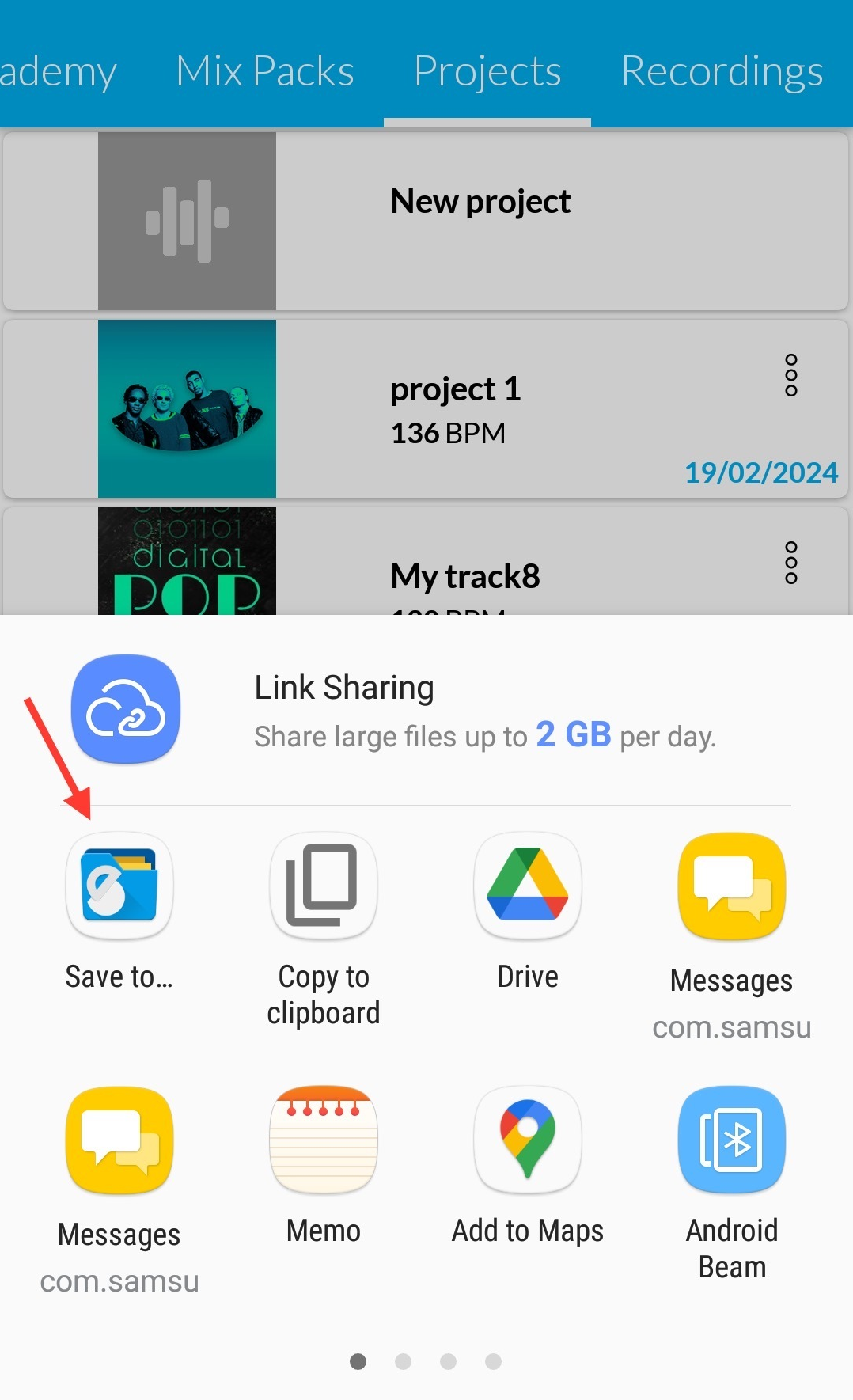
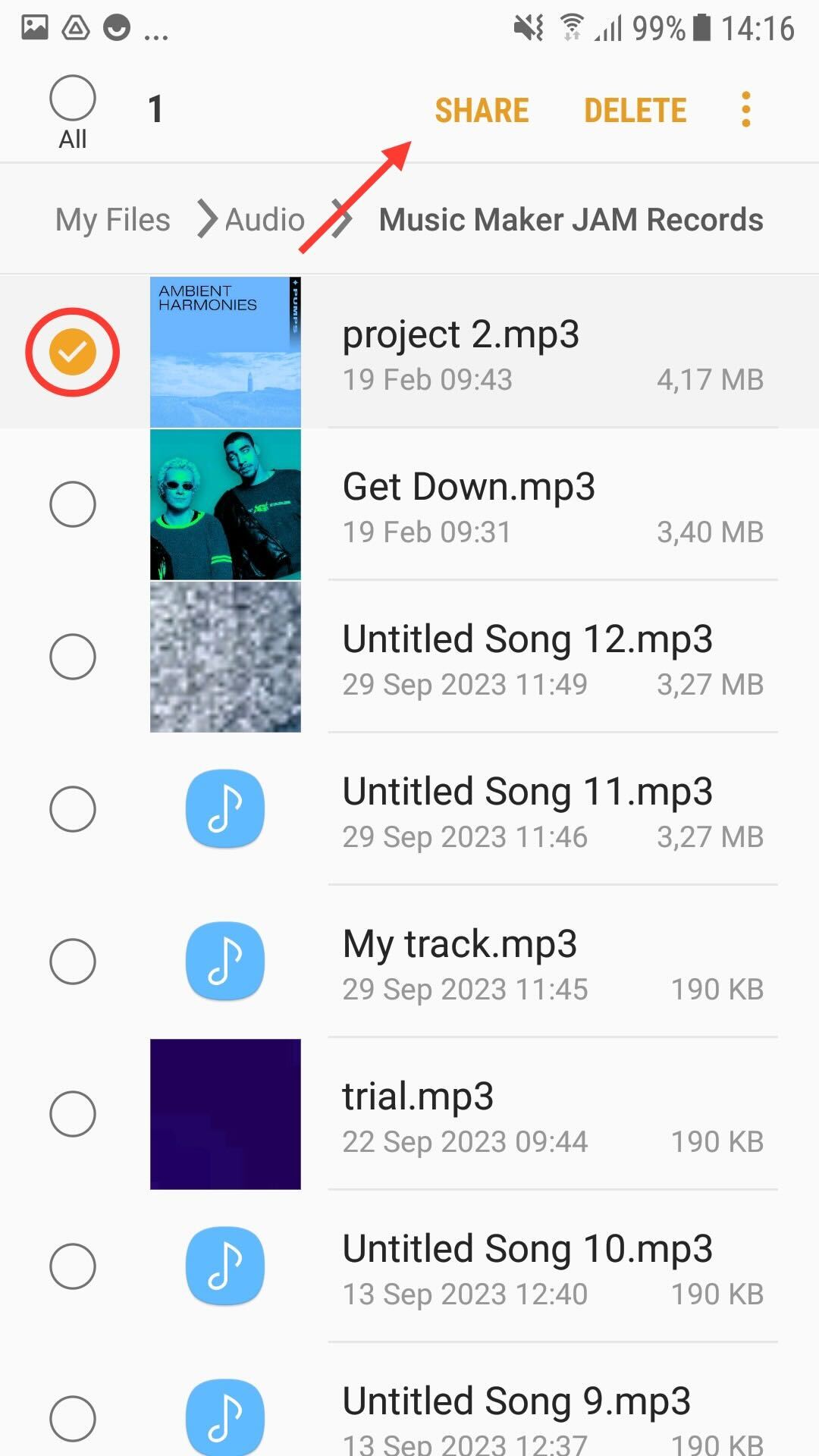
4. Long press on the song you like to backup and click “Share”

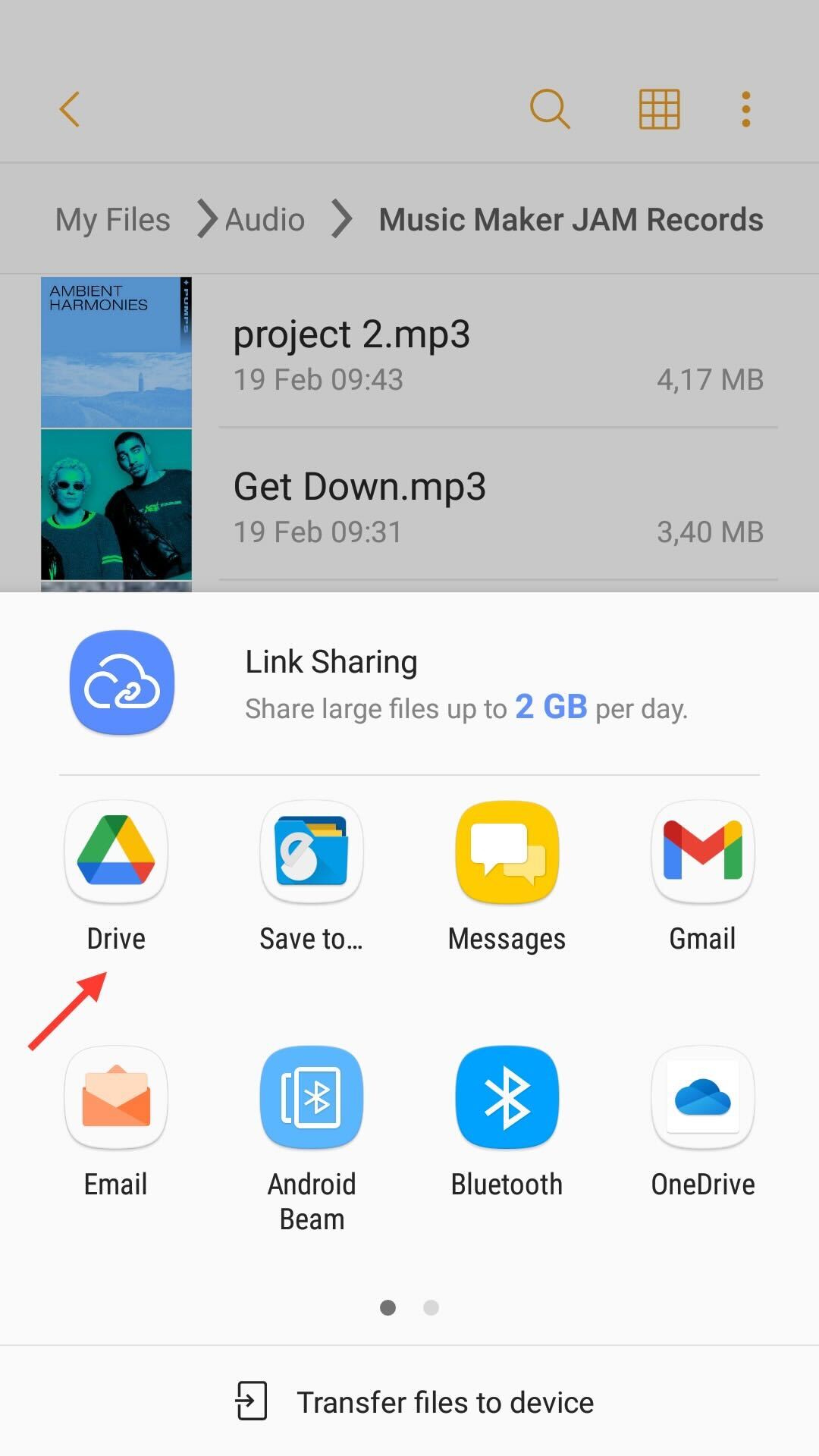
5. Choose “Google Drive” as the destination

6. Then click “Save
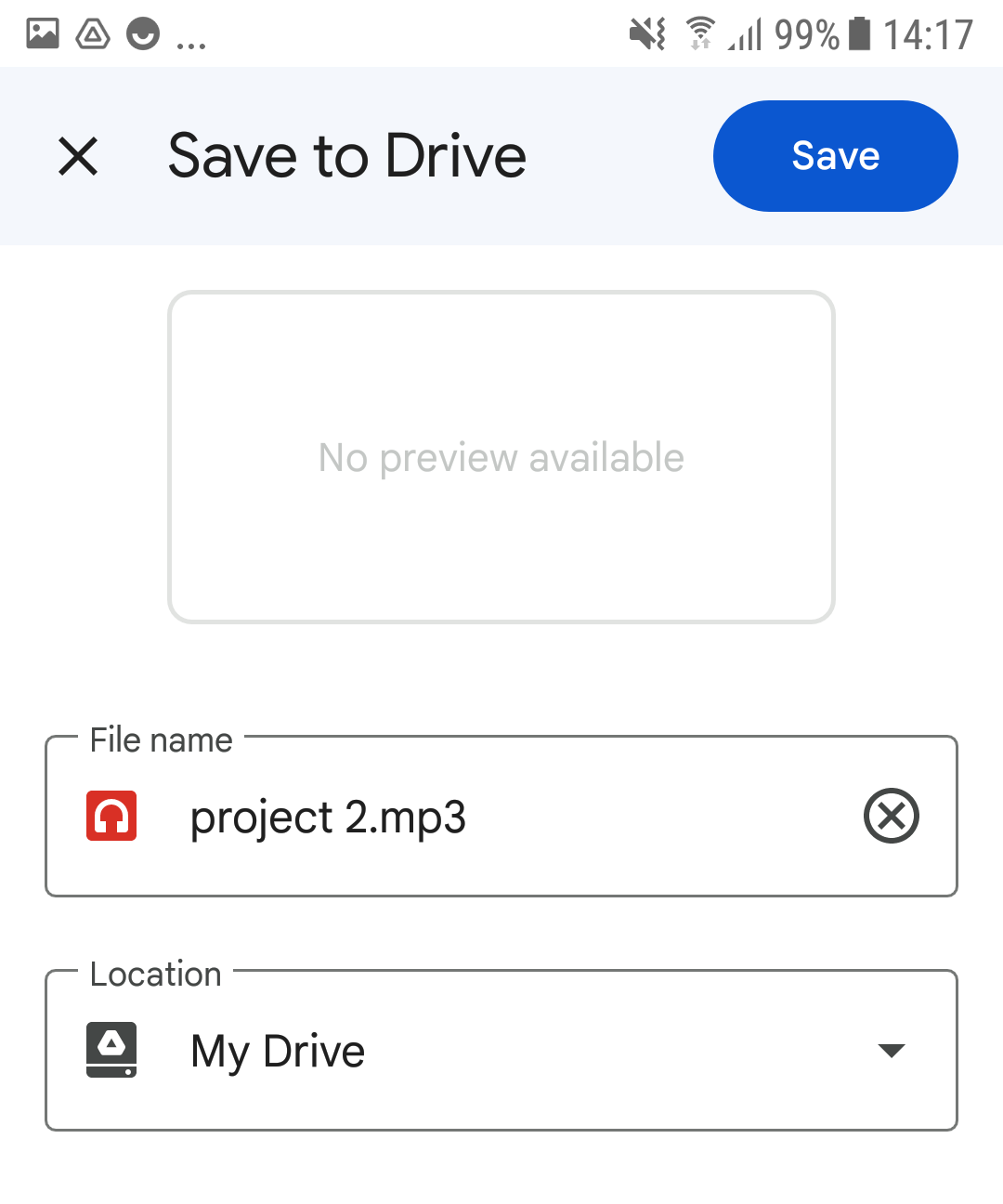
Of course you can also use other online storages, or copy the files to a second device, or computer in order to back them up.

You can also backup songs from within Music Maker JAM. To do this, go to the list of your songs and open the detail page of a song by simply clicking it. Press “Share” > “Others” > “More” > “Audio” and then choose where to store the file.

The audio files you have created with Music Maker JAM are stored locally on your device, and therefore may be lost if your device is damaged or lost, if you accidentally delete them, or even if you uninstall the MMJ app.

Music Maker JAM does not create backups of your songs and cannot restore them. You are responsible for this yourself and we recommend that you save a copy of your masterpieces in a safe place.

On iOS, the easiest way to do this is to use iCloud. The following steps show how you can back up an audio file created with Music Maker JAM to iCloud:

1. Open the “Files” app
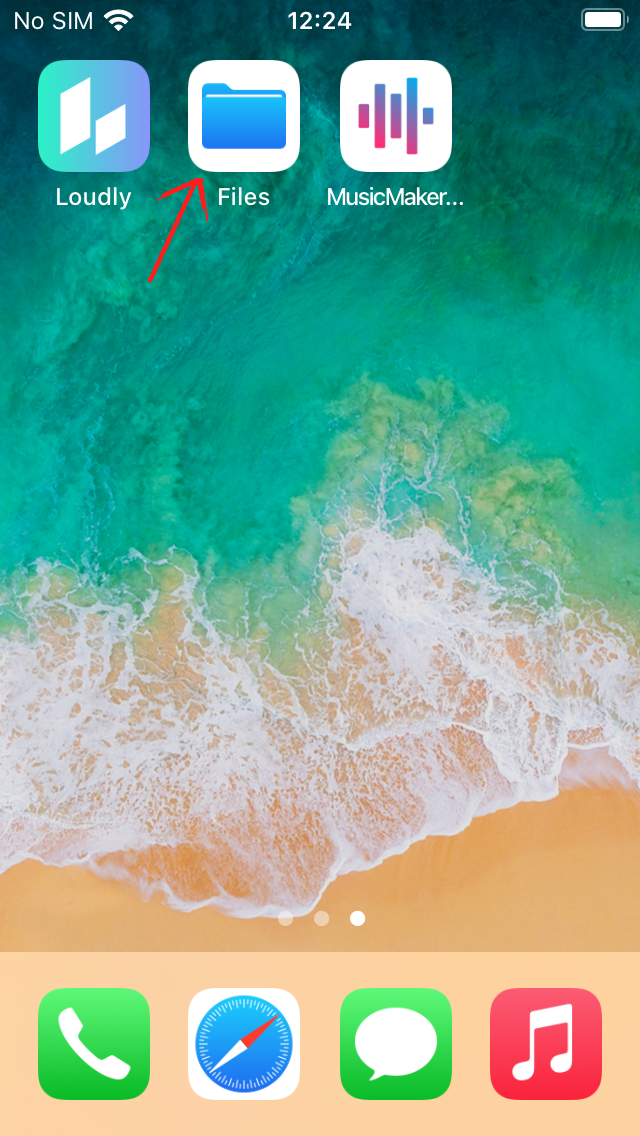

2. Choose the “On my phone” section
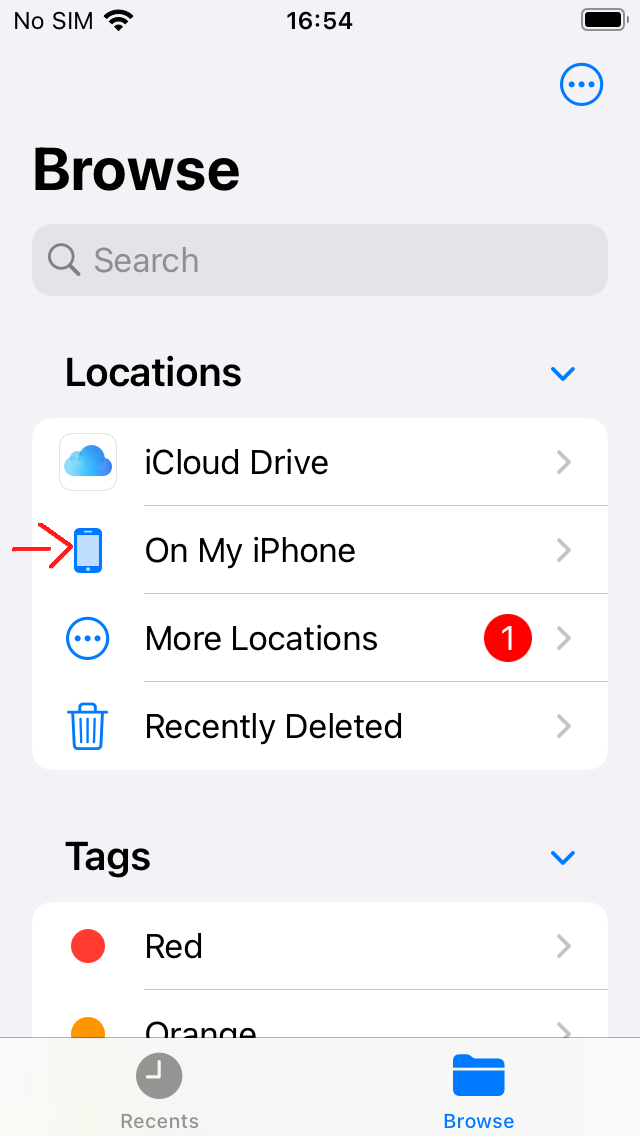

3. And then the “Music Maker JAM” folder
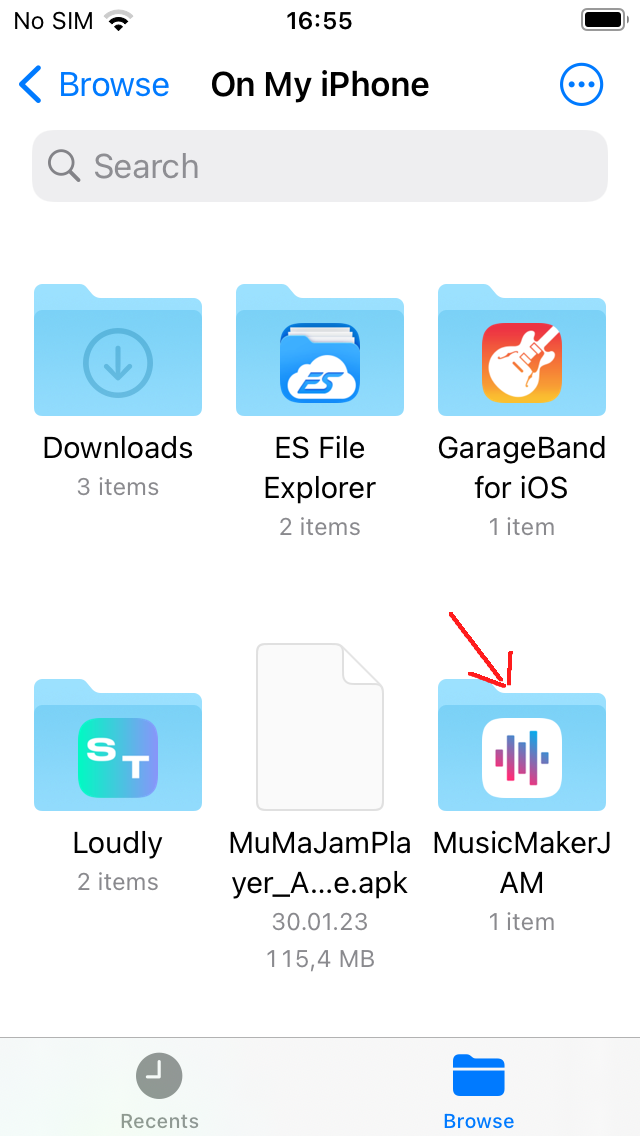

4. Long press on the song you like to backup 
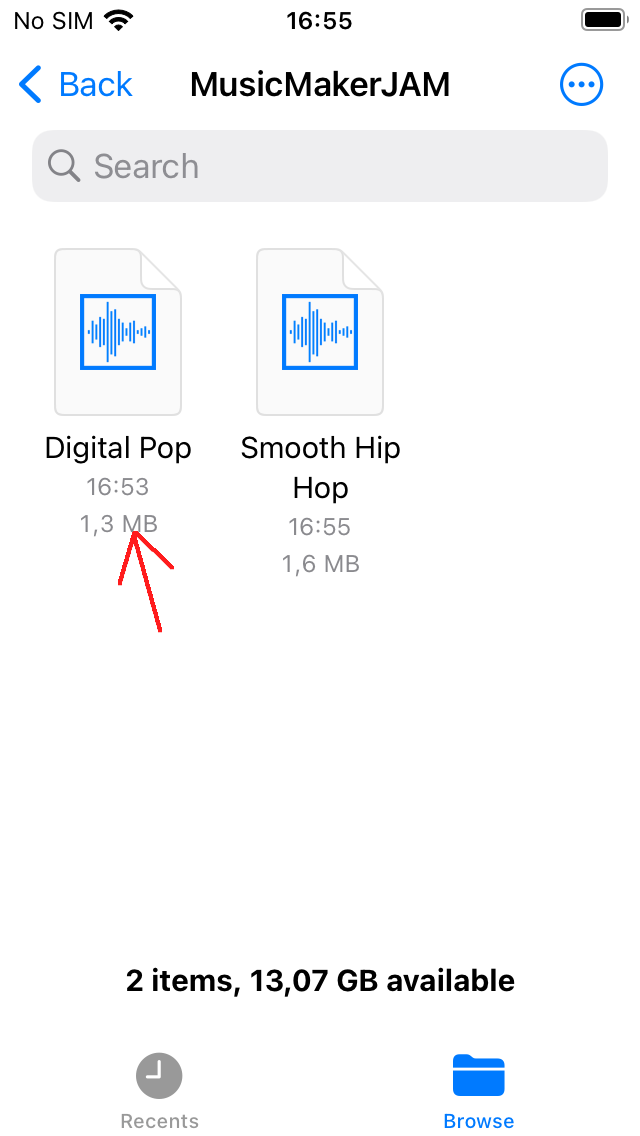

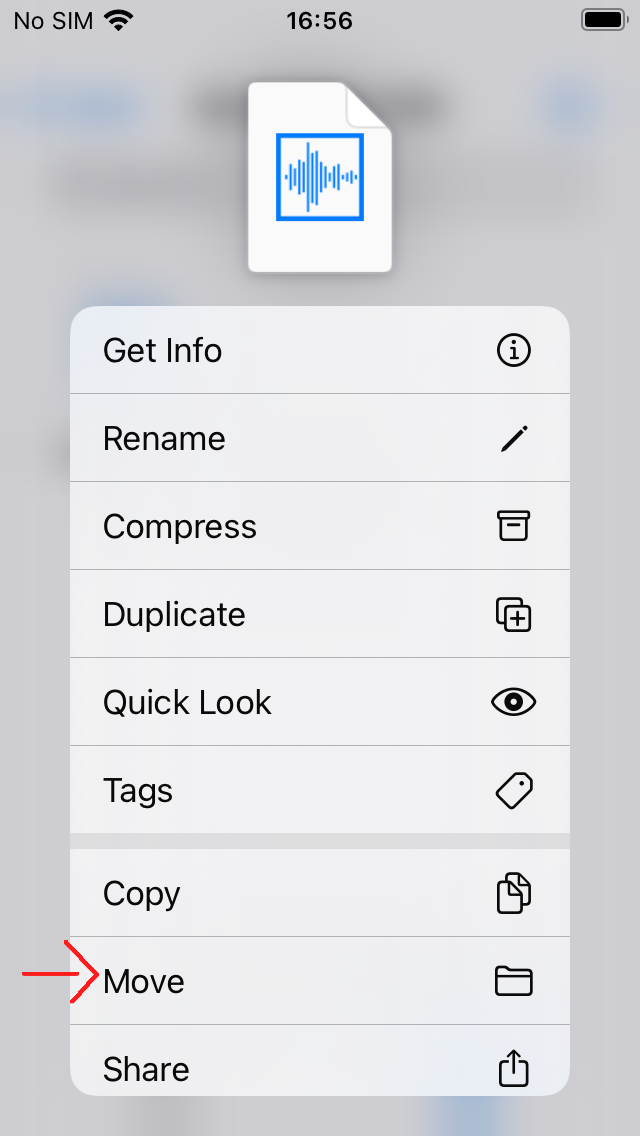
5. Choose “Move” from the menu

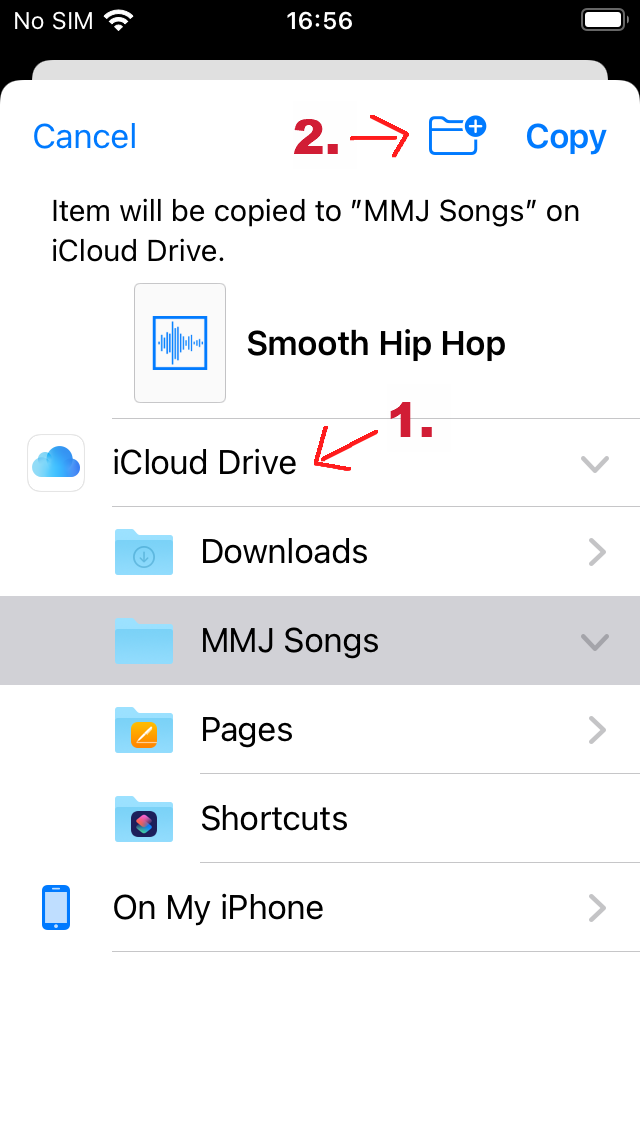
6. Choose “iCloud” as the destination (maybe even a subfolder) and then press “Copy”
Of course you can also use other online storage platforms, or copy the files to a second device, or computer to back them up.

You can also backup songs from within Music Maker JAM. To do this, go to the list of your songs and open the detail page of a song by simply clicking it. Press “Share” > “Others” > “More” > “Audio” and then choose where to store the file.

At the moment, due to licencing reasons, it is not possible to import audio files from external sources.

However, you can use the Mix-Packs which are available for download and install via the in-app store. These are specifically prepared song kits consisting of individual audio loops which have been matched so that they work well together.

My Profile

Android
Press and hold down on the comment you’d like to remove until a rubbish bin icon appears on the left side. Clicking this will delete the comment.

You can remove any comments you have made in the Community, as well as any comments which have been posted on your songs.

iOS
Swipe to the left on the comment you want to delete, and the delete option will appear. Simply click on ‘Delete’ to remove the comment. 

You can remove any comments you have made in the Community, as well as any comments which have been posted on your songs.

Beatcoins

You can earn Beatcoins in the following ways:

  • Complete the ‘JAMcademy’ tutorials within the “My Music” section of the app.

  • Use the Offerwall to complete tasks and earn Beatcoins
    1) Go to the Store section on Home Page
    2) Click on the ‘+’ symbol at the top of the screen
    3) Scroll to the bottom of the Beatcoin store and click ‘Earn Free Beatcoins’.

  • Purchase through the in-app store
    1) Go to the Store section on Home Page
    2) Click on the ‘+’ symbol at the top of the screen
    3) Select the best suited option according to your needs.

  • We also have awesome competitions where you can win Beatcoins, so follow us on Facebook and Twitter.

  • You can see the accepted payment methods for Google Play Store here and the App Store here

Please ensure that you have logged into Music Maker JAM with the registered MMJ account and sufficient time has passed after the purchase for the transaction to be completed.

In case the Beatcoins are still not reflected, write to us at [email protected] with your:

  • Account ID (Available in Settings option on home screen )
  • Purchase receipt/ proof

For Beatcoins not received via the Offerwall, you’ll need to get in touch with Tapjoy directly:

  1. Go to the Offerwall within the Music Maker JAM app and click on the menu at the top left

  2. Click ‘Reward Status’

  3. Click ‘Not Rewarded’

  4. Select the offer that you completed (it may take up to 72 hours for the claim option to appear)

  5. Fill in your email address, and a quick description of the issue, and attach some screenshots which provide evidence of your claim

  6. Accept the ‘Terms of Service’

  7. Click ‘Submit’

For further details please see the ‘FAQ’ section of the Offerwall menu

Mix Packs

Make sure you have a stable internet connection running (ideally WiFi), then terminate the Music Maker JAM app completely (by swiping it off the list of running apps) and restart it again. It should pick up on the Internet connection and automatically proceed with the download of the style.

If you’re intending to use a data plan/connection to perform the content download, please also make sure that the setting to restrict downloads to WLAN/WiFi hasn’t been enabled for Music Maker JAM. You can find this under the app settings for Music Maker Jam in the system settings. Turn it off to enable the app to generally download, even outside of WLAN/WiFi use.

Please ensure that:

  • You are using the latest available version of MMJ app

  • You have logged in with the same account that the styles were purchased with

If the issue still persist, you can use the following workaround.

  1. Delete the data and cache from the Google Play Store app.

  2. Go to “Settings” on Android device > App Manager

  3. Find the Google Play Store app in the list and bring up the info page for it.

  4. Here you can delete the app data and empty the app cache, then restart the Android device before opening Music Maker JAM again.

After performing these steps, the list of purchased Mix Packs (which are connected to the currentled logged Google Play Store user account) can be seen in the “Mix Packs” section under ‘My Music’.
If the packs are still not listed, we request you to kindly wait for packs to finish downloading completely onto your device before coneacting our support team.

Projects

Projects need to be recorded before they are in a music file format.

  1. Select the project you wish to share and go to the JAM screen.

  2. Click on the share button on the bottom left of the JAM screen.

  3. Two options will pop up: Mixdown and Live Recording
    Mixdown: Instantly creates MP3 audio file of your project starting from the first part and ending at the last one.
    Live Recording: Allows you to record the entire JAM session into MP3 file.
    It starts at the currently selected part and continues till you press stop.
    It also allows you to interact live with all the controls while output is recorded to get maximum flexibility.

  4. After recording a new window pops up with the option to “Continue”. You can add a cover image and description for your recording.

  5. Click on Share > Others > More > (Audio/Video)

For already recorded projects,

  1. Find the desired project from “Recordings”.

  2. Click on the title

  3. Click on Share > Others > More > (Audio/Video)

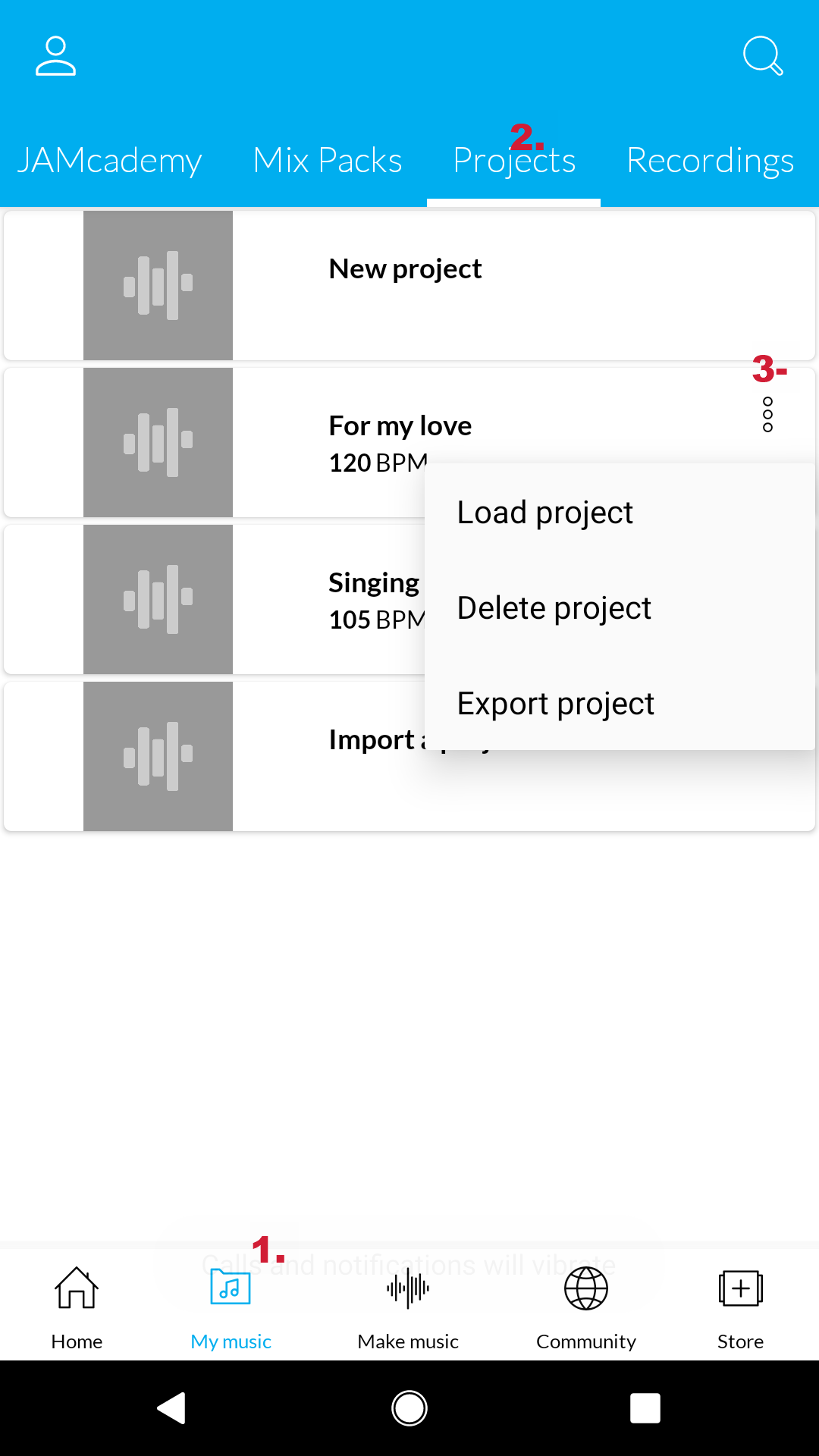
In Music Maker Jam, you can find a list of your projects by going to the “Home” screen and then tapping on “My Music” > “Projects”.

These projects are only saved internally on the app and are not connected with your account.

This means that if you’ve uninstalled/reinstalled the app, deleted the app data or switched to a new device, then unfortunately there is no way to restore them.

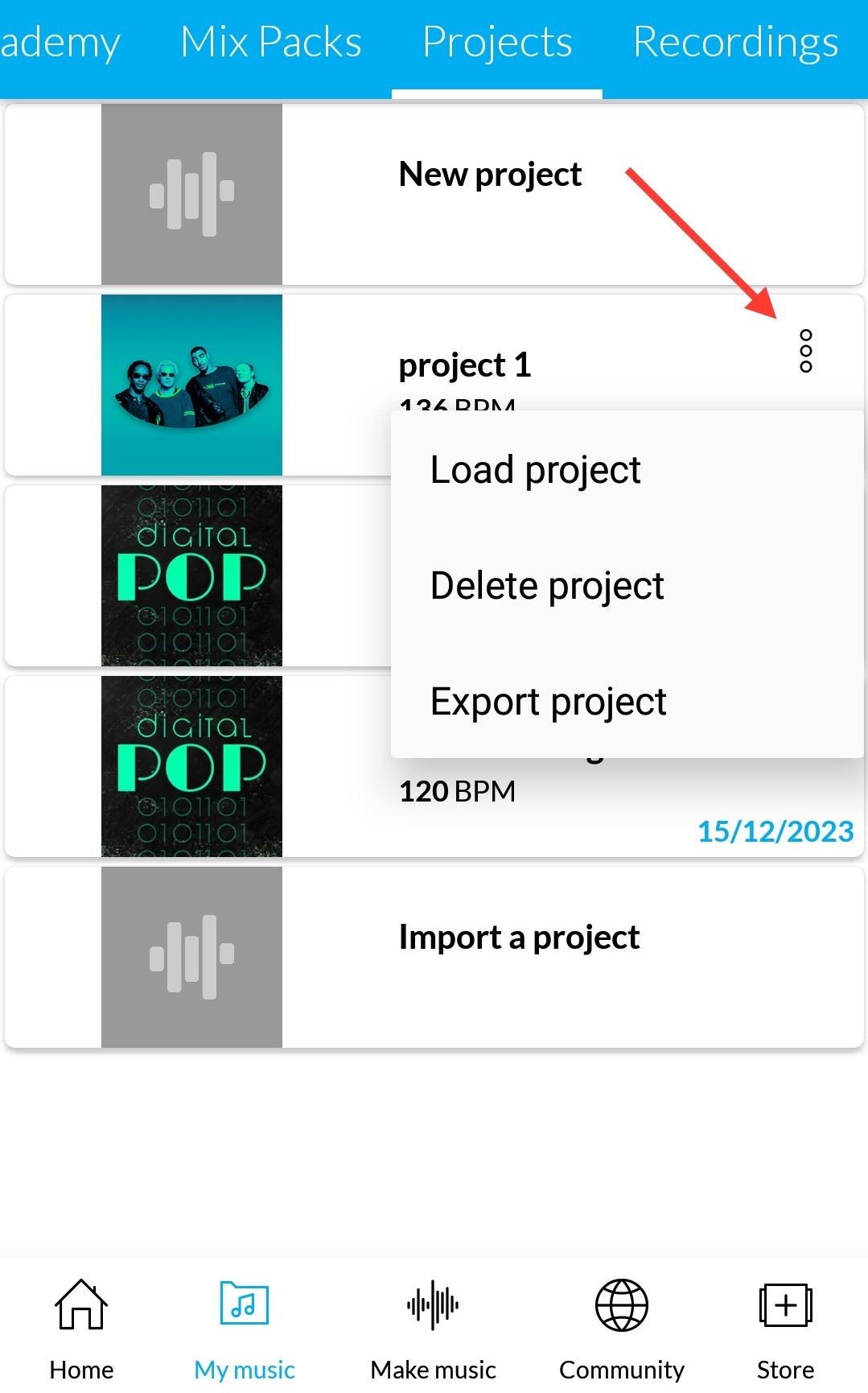
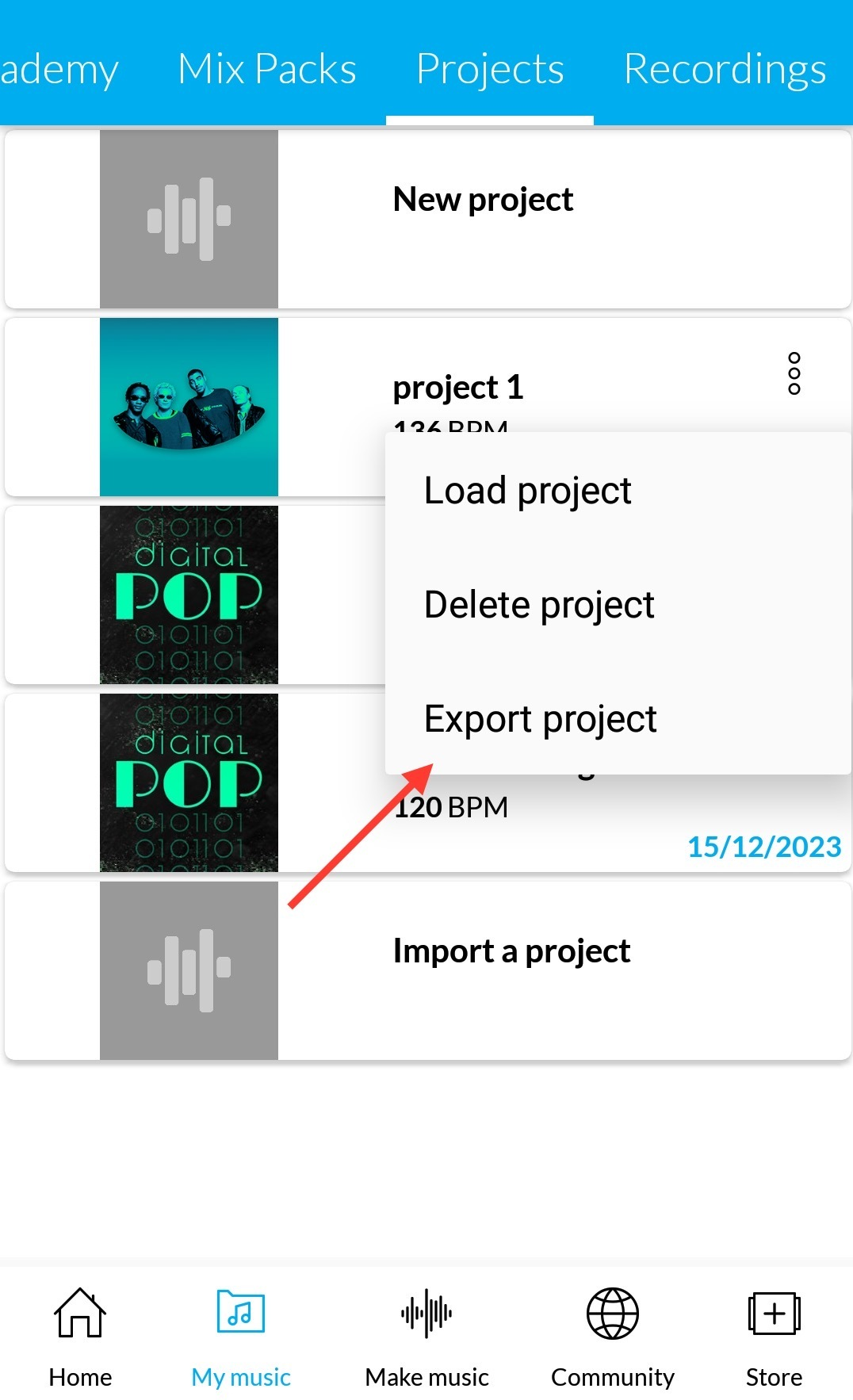
We would recommend to back up your projects using the export option. You can then import the project whenever you require.

Please refer to the ‘Project’ section in the FAQ for information on how to do this.
Vocal Recording

Please make sure you’re in the correct mode to actually play back the entire song at once – this can be set via the switch in the upper right-hand corner of the JAM screen. Once you have changed it to ‘Play all parts and stop’ this will play the entire project straight through, and you can then do your recording again and record onto the whole arrangement in one go.

The latency of your device can be the cause of this issue.
To resolve this perform the following steps

  1. On the Home Page go to Settings > Audio Settings

  2. Use the ‘Estimate automatically’ function and follow the on-screen instructions to run the latency time check.

  3. You would observe the latency time (in milliseconds) being filled in.
    *General range: 300-500 ms.

  4. This can be corrected manually if necessary.

  5. You should now be able to continue with your recording again.

Android
Go to My Music > Projects. On the right-hand side of each project, click on the three dots and select the option to ‘Delete unused recorded loops’. This will delete all vocal recordings within that project which are not currently used in any part of the track.

iOS
Go to My content > Projects. Click on the ‘i’ symbol on the right-hand side of a project. This will open a menu and, if there are unused vocal recordings in the project, you will see the option to ‘Delete unused recorded loops’. Select this and then click ‘Delete’. 

Pro Subscription

Troubleshooting

If you are having issues downloading and/or installing Music Maker JAM, we would recommend that you follow these steps:

A) Delete cache from Google Play Store

  1. Delete the data and cache from the Google Play Store app.

  2. Go to “Settings” on Android device > “App” Management Section

  3. Find the Google Play Store app in the list and bring up the info page for it.

  4. Here you can delete the app data and empty the app cache

B) Enable the “Download Manager App” and delete the cache and data

  1. Go to “Settings” on Android device > “App” Management Section

  2. Find the Download Manager app in the list.

  3. Here you can delete the app data and empty the app cache

  4. Make sure the app is NOT disabled.

The above steps should resolve the issue.

In case the issue still persists, please work your way through the complete Google troubleshooter for this kind of issue on the following website:
https://support.google.com/googleplay/troubleshooter/4592924

Licensing/Sharing